
01
Sign in and authorize
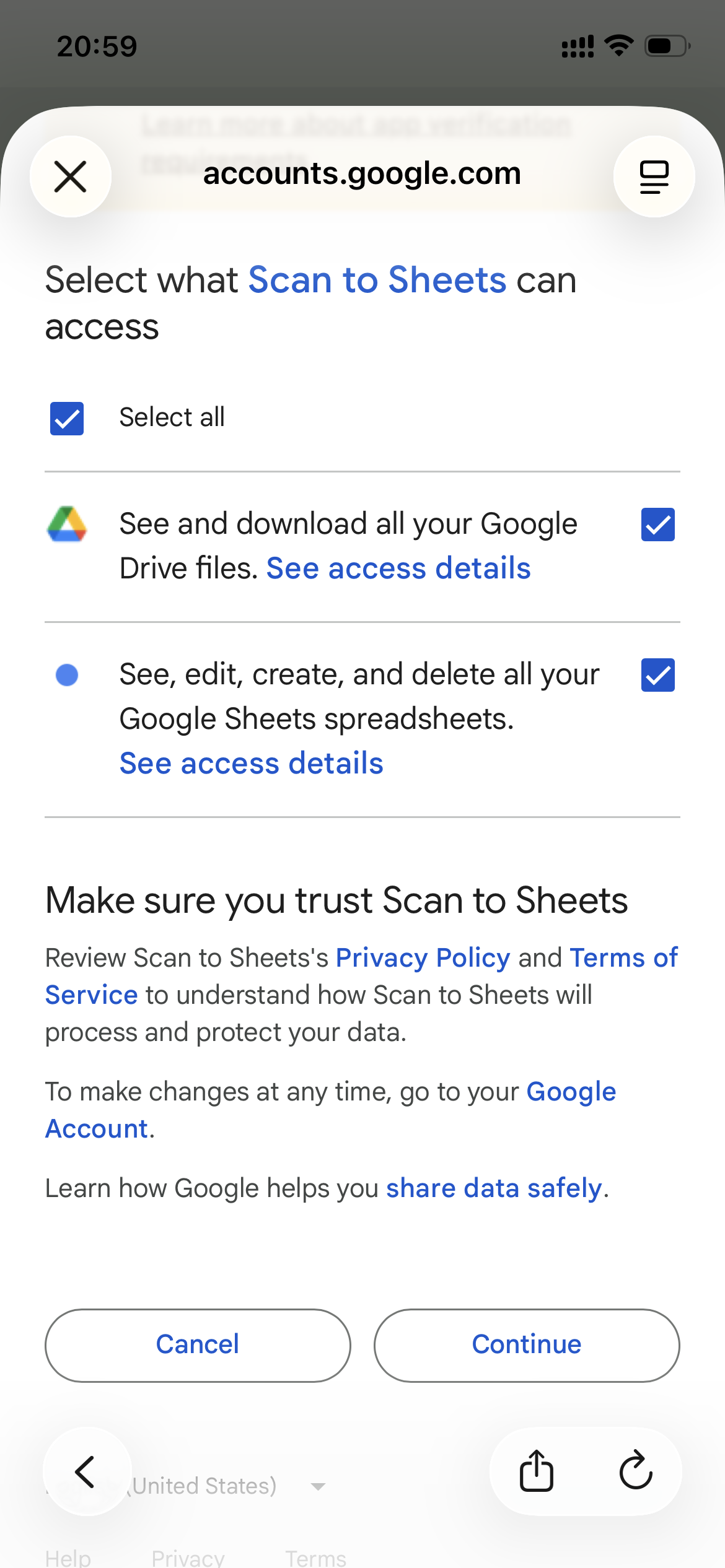
On Connect, choose Choose from Google Drive, tap Sign in with Google, keep both Google Drive and Google Sheets selected, then tap Continue. Revoke later at Google Account permissions.
Documents
The app has two connection methods. Pick one below and follow only that path.
Sign in with Google, grant Drive and Sheets access, then pick or create a spreadsheet. The app talks to Google from your device. Use this when you want to browse Drive or skip sharing an app email.
01
On Connect, choose Choose from Google Drive, tap Sign in with Google, keep both Google Drive and Google Sheets selected, then tap Continue. Revoke later at Google Account permissions.
02
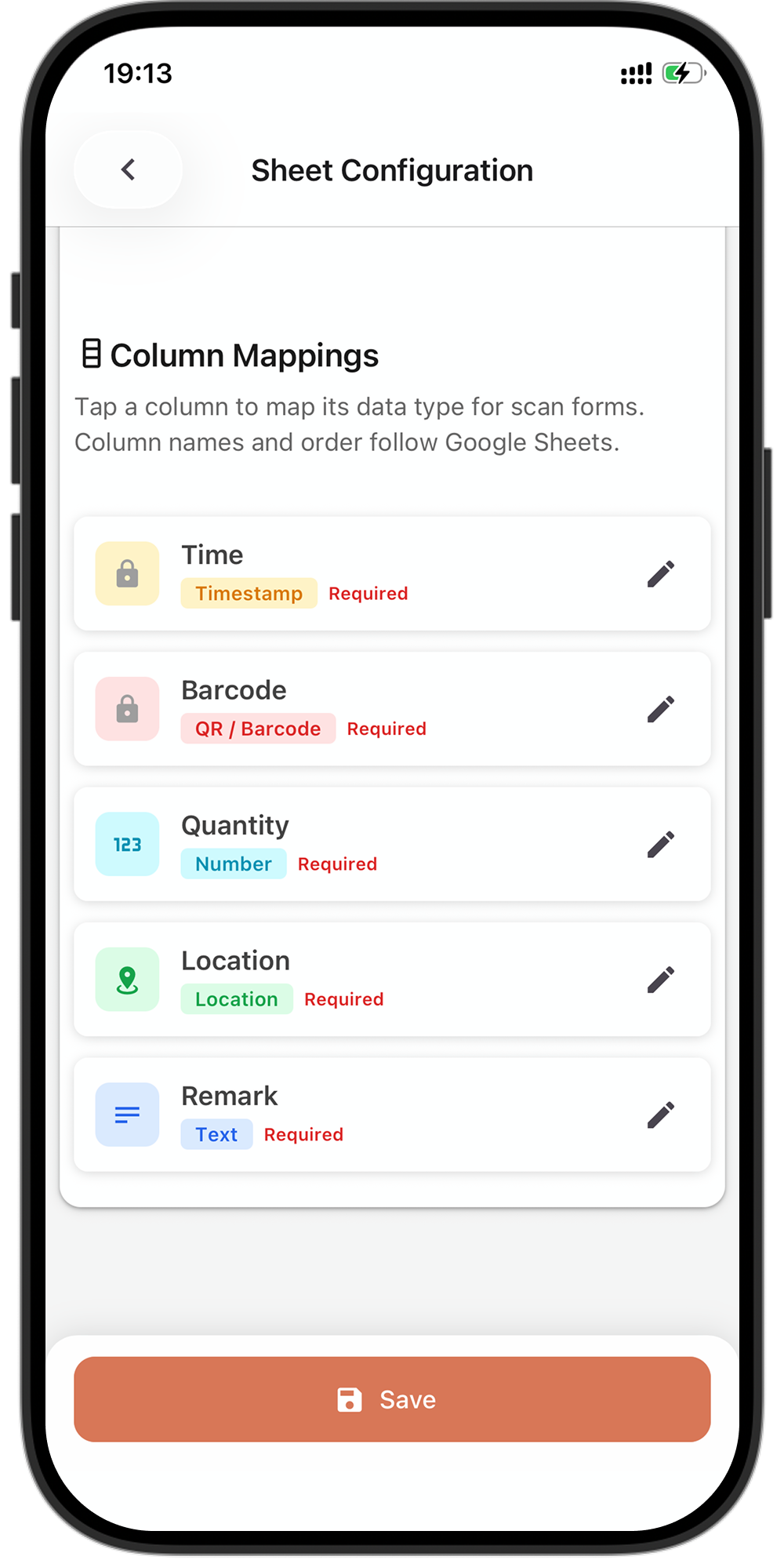
After you pick a spreadsheet and worksheet, tap Edit column mapping if you need extra fields. Column names follow Google Sheets.
03
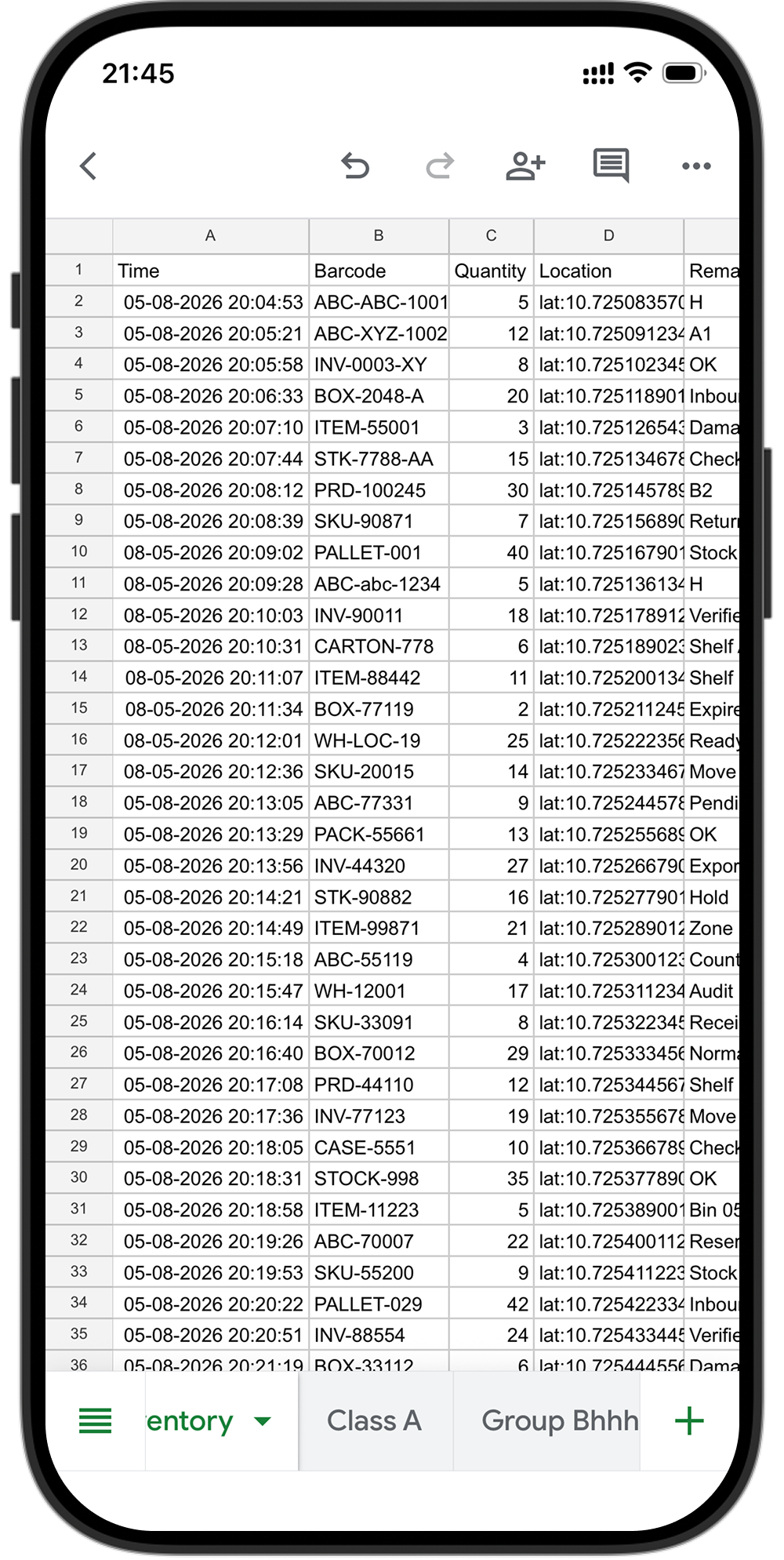
Connect should show the spreadsheet title. Send a test scan from Home. The row should appear in the selected Google Sheets tab.
04
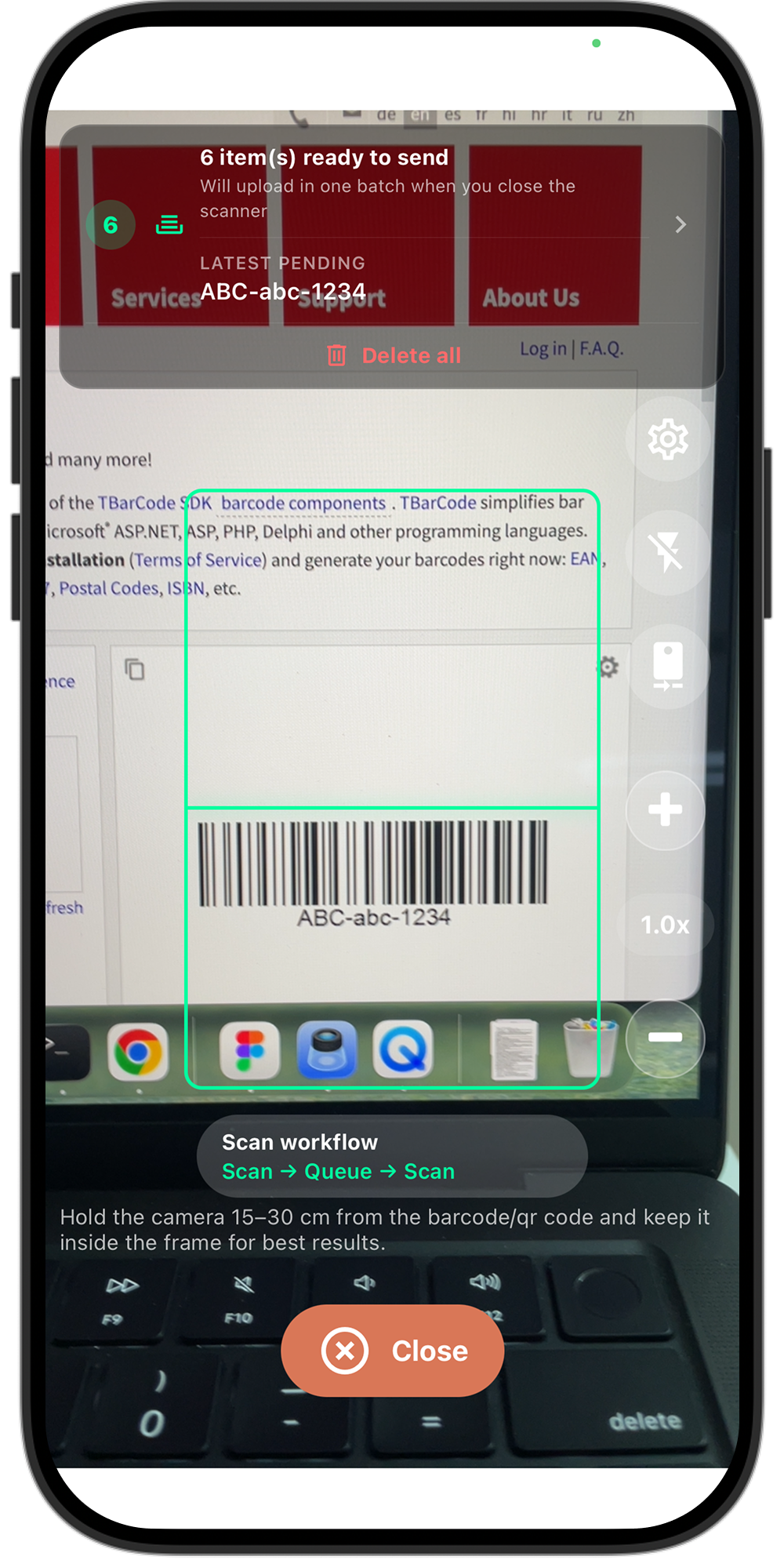
Return to Home, scan a barcode or QR code, complete any form fields, then send. Need help? Support.
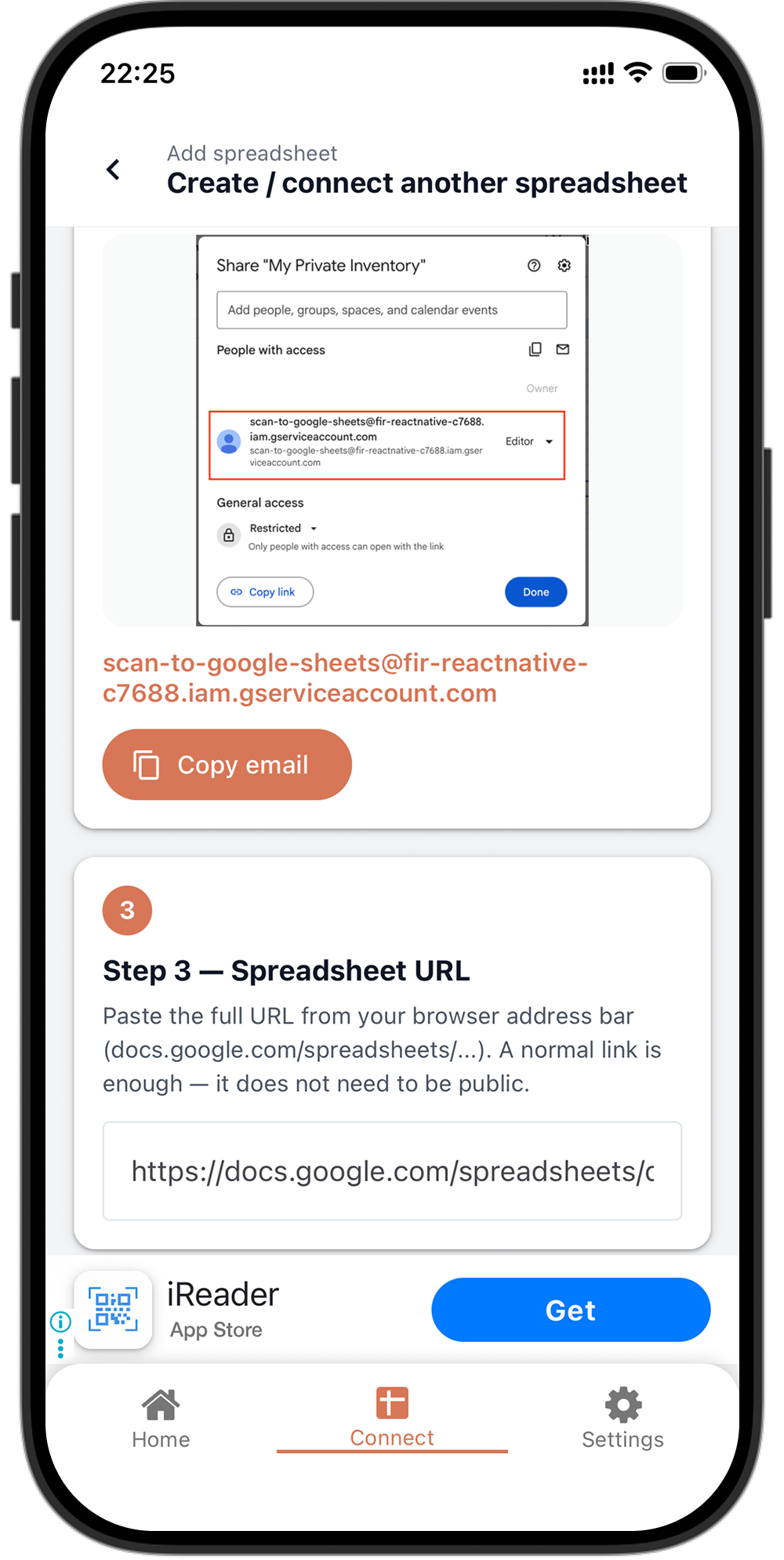
You do not sign in with Google. Share the spreadsheet with the app email shown in Connect as Editor, then paste the spreadsheet URL and tap Connect. The sheet can stay private — it does not need “Anyone with the link”.
01
On Connect, choose Private sheet with app access. Copy the service-account email from the app, open Share in Google Sheets, add it as Editor, then paste the spreadsheet URL and tap Connect spreadsheet.
02
After Connect loads worksheets, pick a tab and tap Edit column mapping if you need extra fields. Column names follow Google Sheets.
03
Connect should show the spreadsheet title. Send a test scan from Home. The row should appear in the selected Google Sheets tab.
04
Return to Home, scan a barcode or QR code, complete any form fields, then send. Need help? Support.
Open Scan to Sheets and use the same steps on your phone.